 Keystroke
Getting started
Most of what Keystroke does for you is plain phrases: you type a short code and the full text appears. This page covers everything you need for that. Dates, lists and forms are on the advanced page when you want them.
Contents
- Add a phrase
- Choosing shortcuts
- Example phrases
- Change or delete a phrase
- The same phrases on every PC
- Everyday controls
- Updates
Add a phrase
- Click the Keystroke icon in the system tray, at the bottom right of the screen. It may be under the ^ arrow. The editor opens.
- Click New.
- Give it a name so you can find it later, such as "Home address". Only you see the name.
- Type the shortcut, such as
addr, and tick Whole word only (see below). - Type or paste the text it becomes. Press Enter for a new line, exactly as you want it to appear.
- Click Save. It works straight away, in every app.
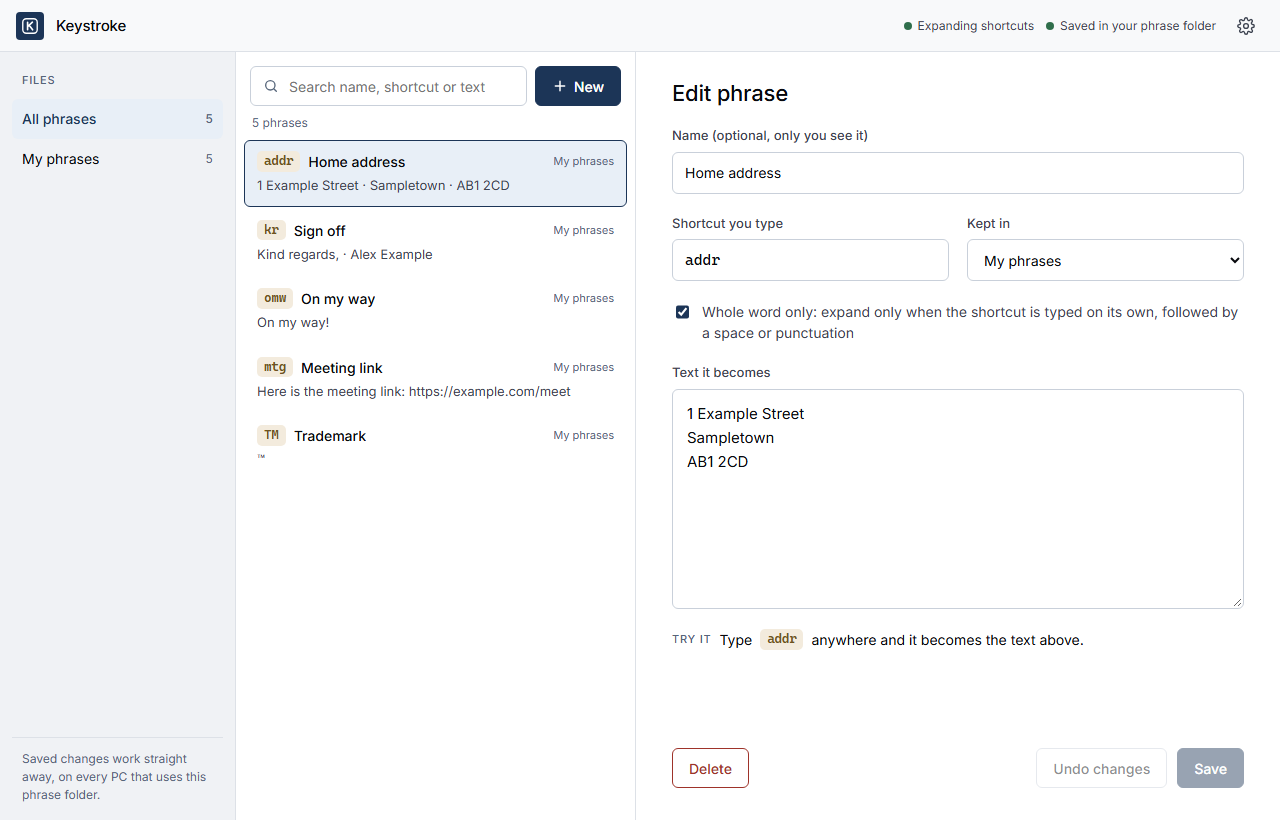
A phrase in the editor. The phrases shown are examples.
Want today's date, what you last copied, or the cursor to wait in the middle of a phrase? Click Insert beside "Text it becomes". The advanced page explains each.
You never need to see the phrase file. Keystroke keeps your phrases in a small text file in your phrase folder, and the editor writes it for you. The advanced page shows what goes into that file for the features the editor cannot make yet.
Choosing shortcuts
A shortcut should be something you would never type by accident. There are two easy ways to make sure of that.
A short made up word, whole word only
addr, kr, omw. Tick Whole word only and the shortcut fires only when you type it on its own and then a space or punctuation, so kr never fires inside "Kraken". This suits most phrases.
A symbol in front
;addr, ;sig. A semicolon is almost never followed straight by a letter in normal writing, so these can fire the moment you finish typing them, with no space needed. Useful if you prefer that, but never required.
Shortcuts are case sensitive: TM and tm are different shortcuts.
Example phrases
Ideas to start from. Each was tried on Keystroke's typing engine, and the right hand column is what it typed. All are whole word only.
| Name | Shortcut | Becomes |
|---|---|---|
| Sign off | kr | Kind regards, Alex Example |
| Home address | addr | 1 Example Street Sampletown AB1 2CD |
| Mobile number | tel | 07700 900123 |
| Standard reply | tyfe | Thank you for your email. I will come back to you by the end of the week. |
| Meeting link | mtg | Here is the meeting link: https://example.com/meet |
| Bank details | bankd | Example Bank Account name: Alex Example Sort code: 00-00-00 Account number: 12345678 |
| Quick message | omw | On my way! |
| Trademark | TM | ™ |
| Half | 1/2 | ½ |
| Care of | c/o | ℅ |
Change or delete a phrase
Open the editor, click the phrase in the list (or search for it), change it and click Save. Undo changes puts it back as it was before you saved. Delete asks before it removes anything.
Keystroke keeps a backup of your phrase file before every change it saves, on each PC.
The same phrases on every PC
Keystroke keeps your phrases in one folder, which you choose when you install it. Put that folder in OneDrive, Dropbox, Google Drive or any other cloud service that keeps a folder in step across your computers, and choose the same folder when you install Keystroke on each of your PCs.
Add once, use everywhere
A phrase added on your desktop is on your laptop moments later, with nothing to copy or export.
Backed up without trying
Your phrases live in your cloud storage, so a lost or replaced PC loses nothing. Install Keystroke on the new one, choose the folder, and every phrase is there.
Always yours
They are ordinary text files in a folder you own. Nothing locks them away.
Keystroke runs on Windows. Every Windows PC with Keystroke installed and pointed at the folder uses the same phrases.
Everyday controls
Open the editor
Click the Keystroke icon in the tray. Minimising the editor puts it away in the tray; click the icon to bring it back.
Search your phrases
Press Alt Shift Space anywhere, type part of a shortcut or its text, and pick the phrase.
Pause and resume
Right click the tray icon and choose Pause expansion. Choose Resume expansion to switch it back on.
Undo an expansion
Press Backspace straight after a phrase appears to turn it back into the shortcut you typed.
About and version
Right click the tray icon and choose About Keystroke.
Starts with Windows
Keystroke starts by itself each time you log in, quietly, in the tray.
Updates
Keystroke's typing engine is Espanso, an open source project with its own releases. Here is what that means for you.
Nothing changes by itself
The Keystroke you have keeps working exactly as it is, whatever Espanso releases. It never updates without you.
You are told
Keystroke checks once a day and shows a notice when a newer Espanso is out. A new Keystroke that includes it is then published on the download page.
Updating is one install
Download the new Keystroke and run it. It replaces the old one in place. Your phrases, your phrase folder and your settings are kept; there is nothing to set up again.